On-device OCR
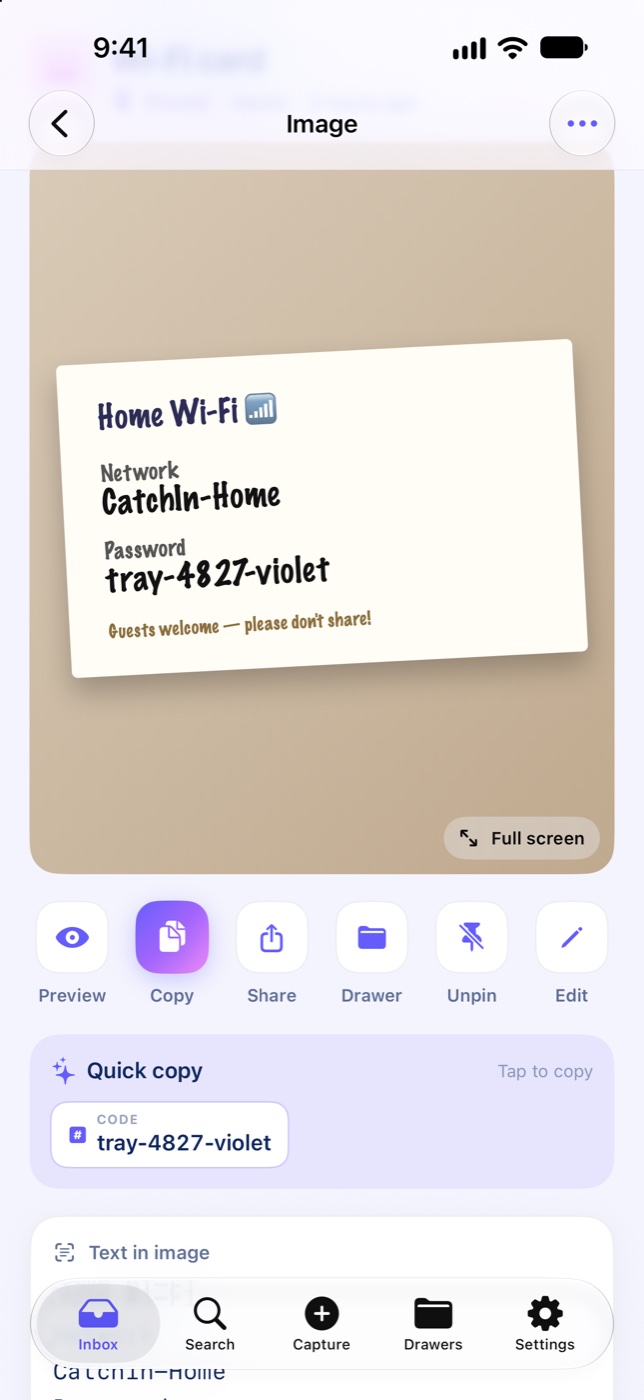
Search the text inside the screenshot.
Vision runs locally and indexes every capture — codes, addresses, booking refs buried in images and PDFs.
Screenshots, links, PDFs, gate codes — they scatter across Photos, Files, Notes and Mail. CatchIn catches them all in one share, and gives them back in one search.
The problem
You're at the gate. Security wants the booking reference. It was in an email… or a screenshot… or a PDF… or a message. Two minutes later you're still scrolling Photos. The information isn't lost — it's scattered, and every app only searches its own slice of it.
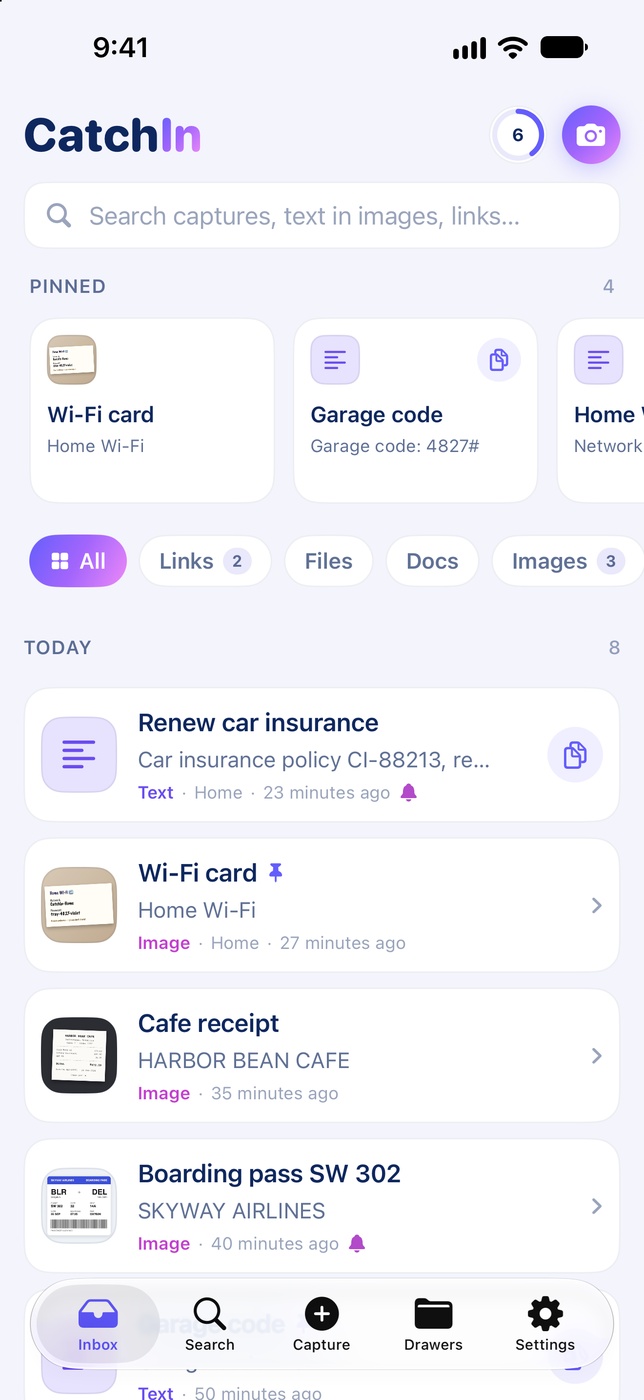
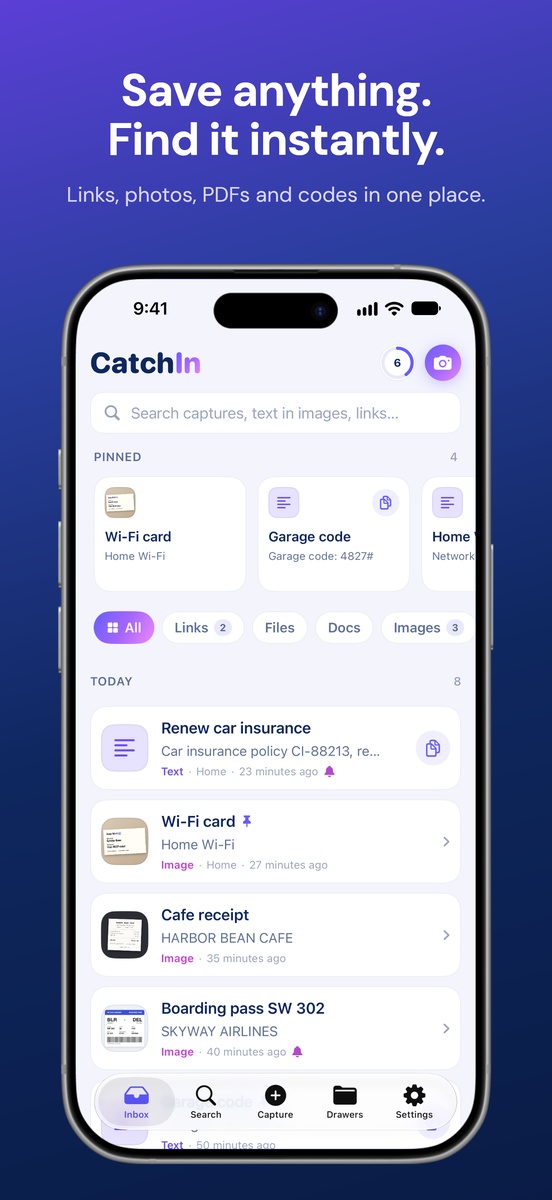
One inbox
Everything you'll need again
How it works
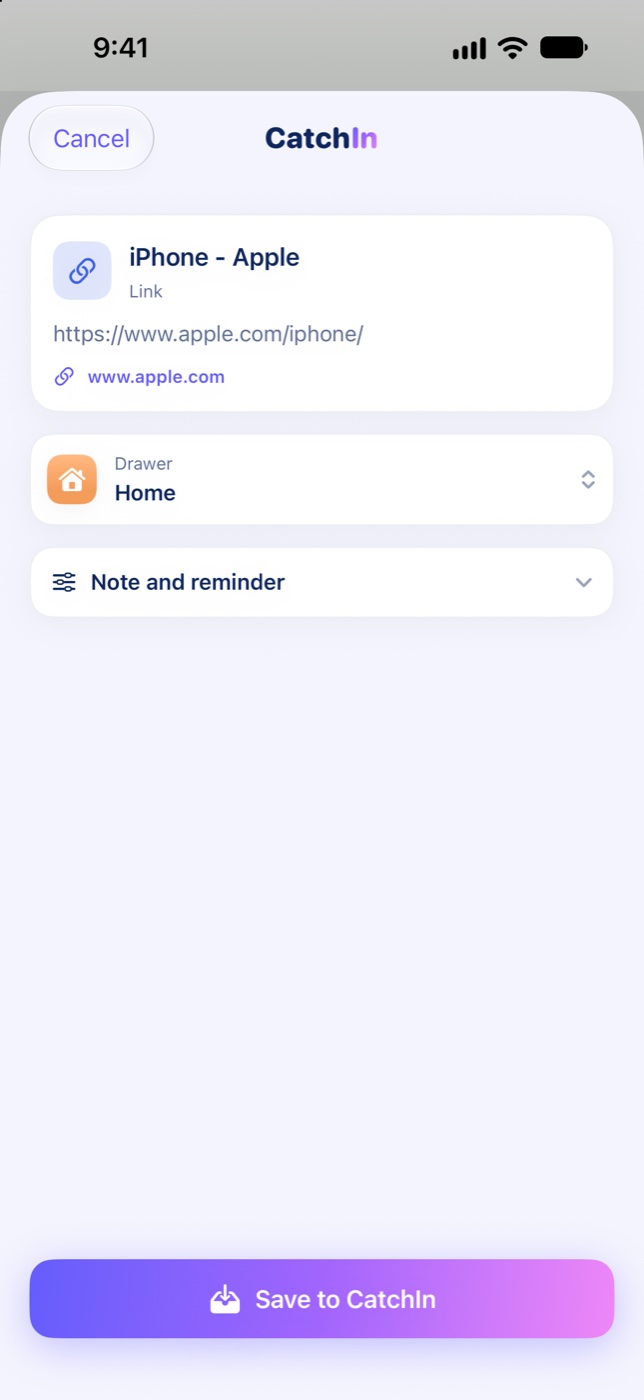
01 — One share
From Safari, Photos, Mail, Messages — anywhere. The share extension saves straight into the store without even opening the app, then offers a drawer and an optional reminder.
02 — One search
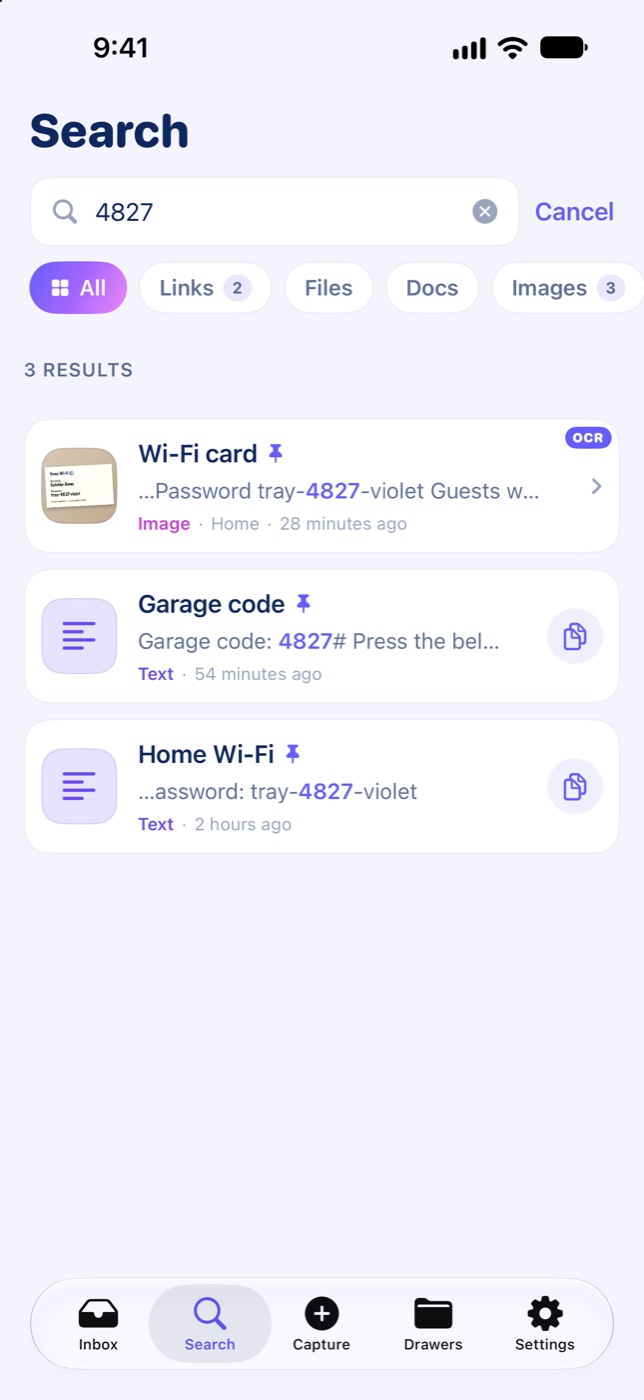
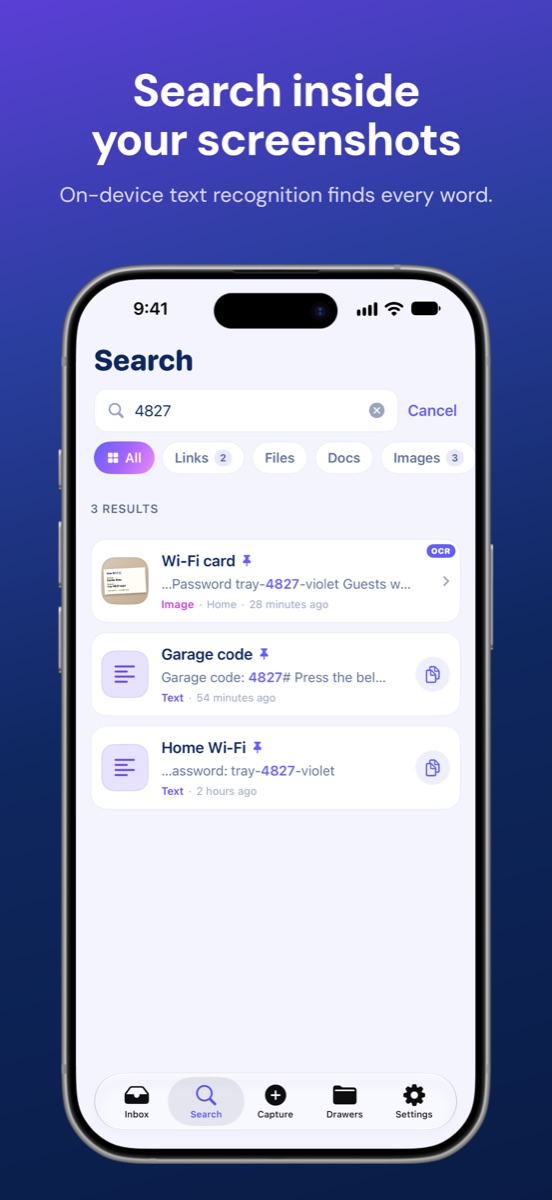
On-device Vision reads your screenshots and PDFs, so searching 4827 finds the photo of the gate code. Typeahead runs across titles, notes, tags, drawers and recognised text.
Live demo · results appear as you type in the app
03 — One insert
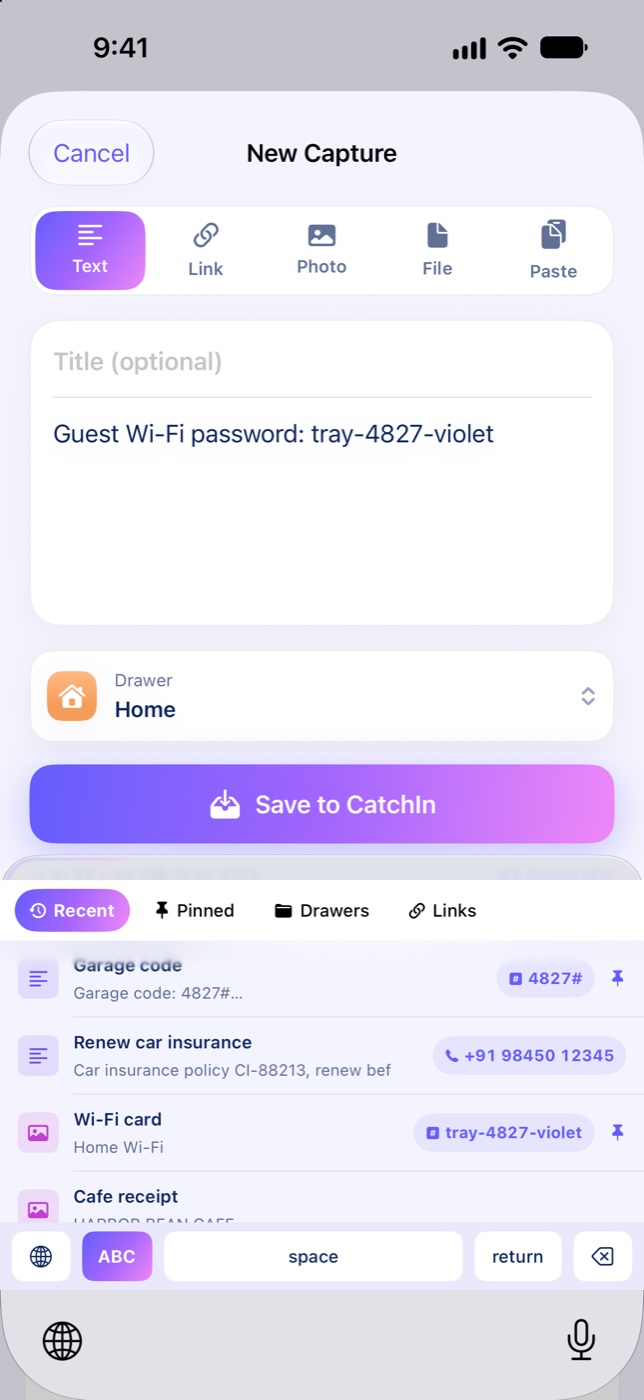
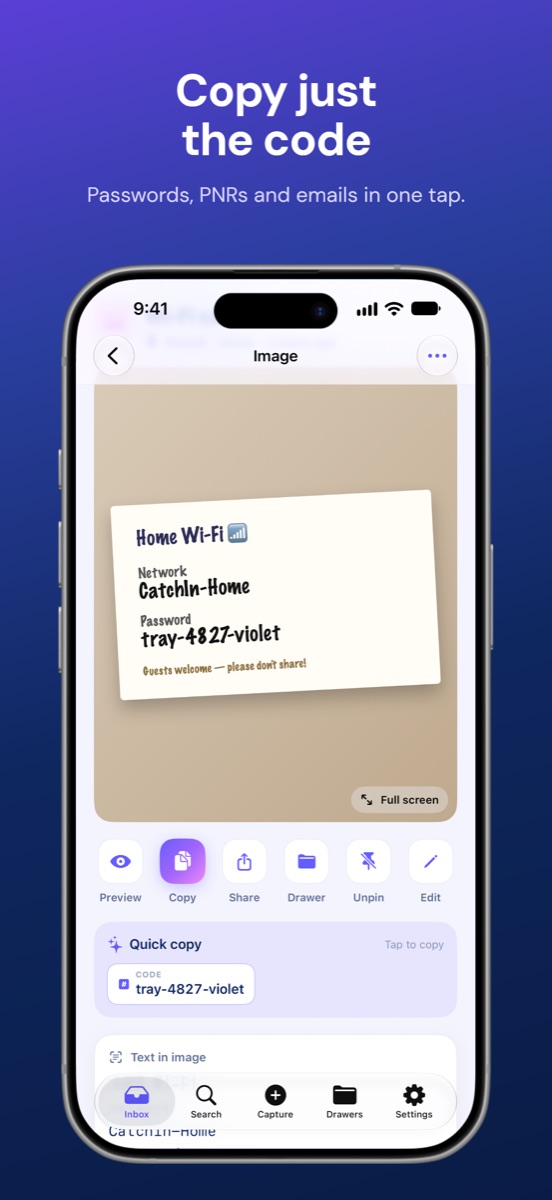
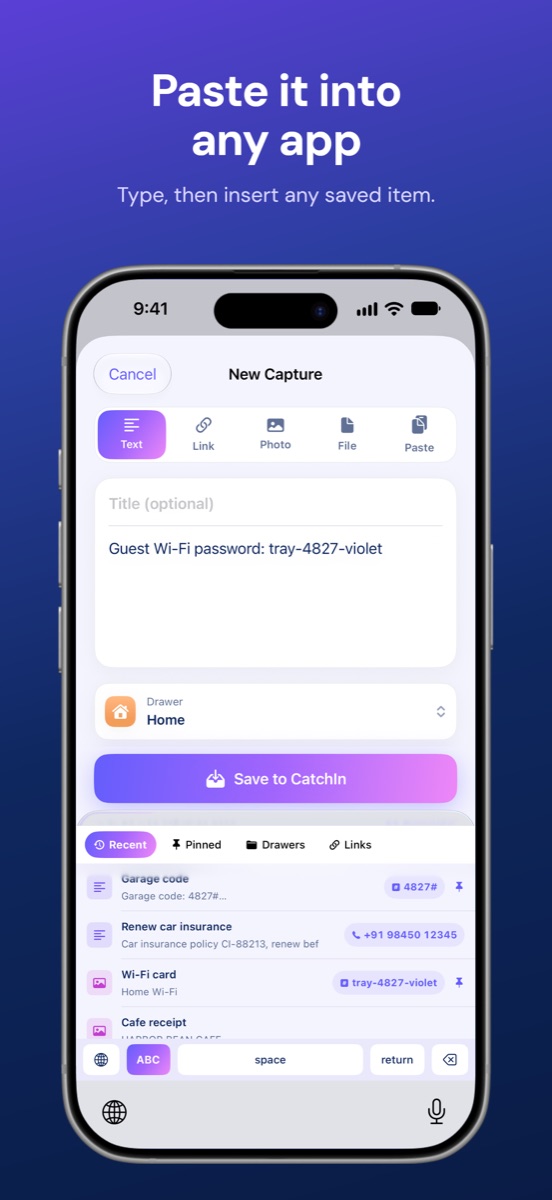
Switch to the CatchIn keyboard in Messages, Mail or anywhere — and tap to insert your pinned codes, emails and addresses. Smart Quick-copy pulls out exactly the code, not the whole note.
No Full Access needed — nothing you type leaves your iPhone.
Built for retrieval
One design system across the app, share sheet, keyboard and all seven widgets.
Vision runs locally and indexes every capture — codes, addresses, booking refs buried in images and PDFs.
Passwords, codes, emails, phones — even PAN, Aadhaar, IBAN and card numbers — are detected for you.
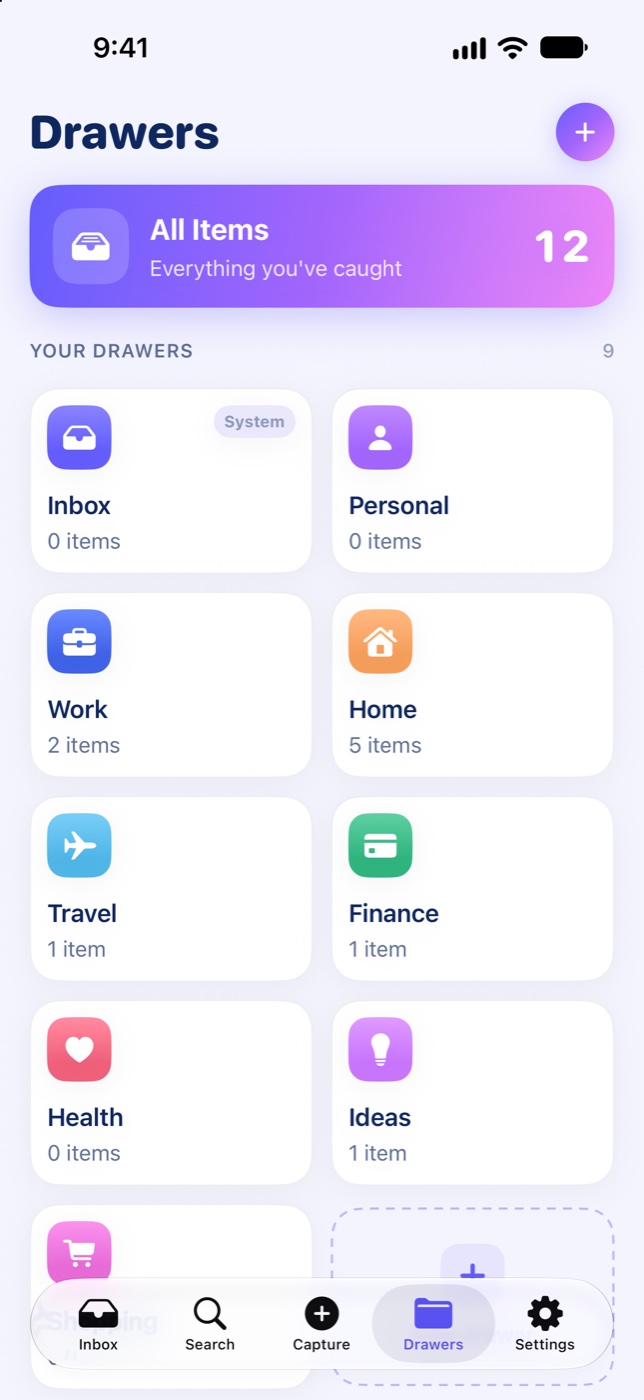
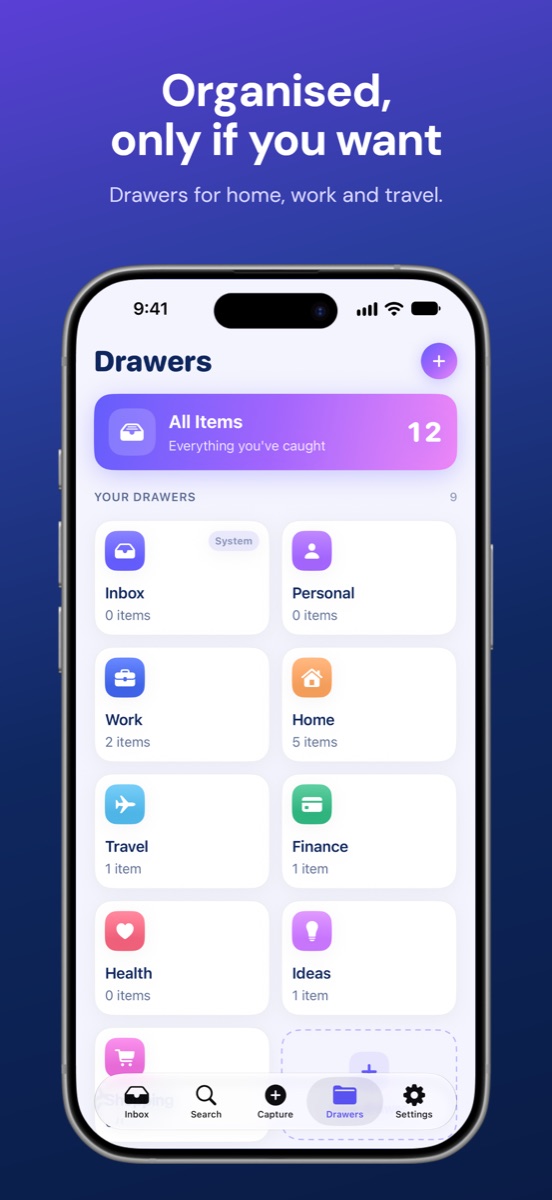
Curated icons or emoji. Organise only if you want to — capture never forces it.
Uses the system Paste button — never reads your clipboard silently.
“Save to CatchIn”, “Search CatchIn”, the Action button — and captures show up in iPhone Spotlight too.
Take a look
Home & Lock Screen
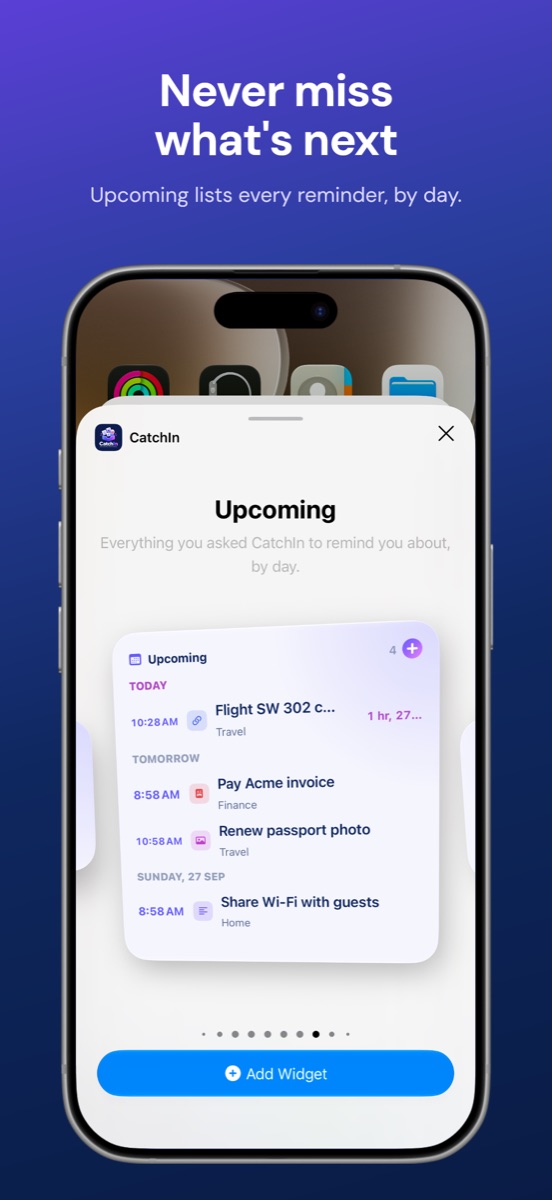
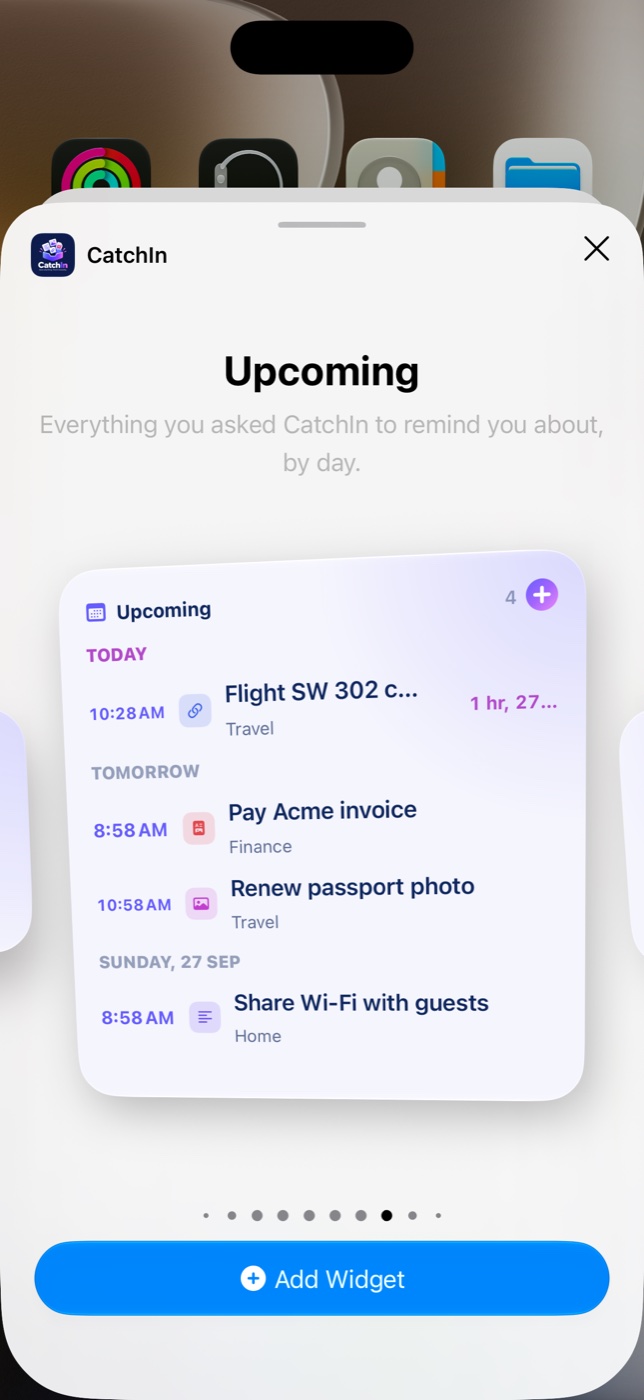
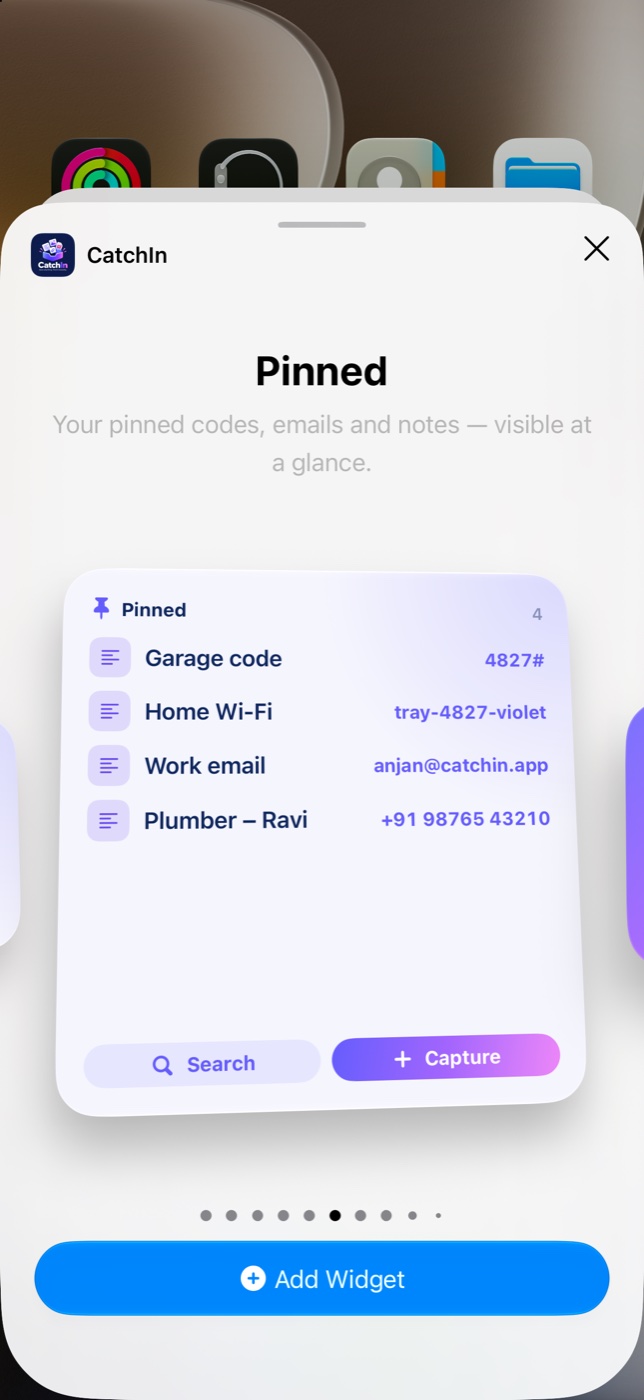
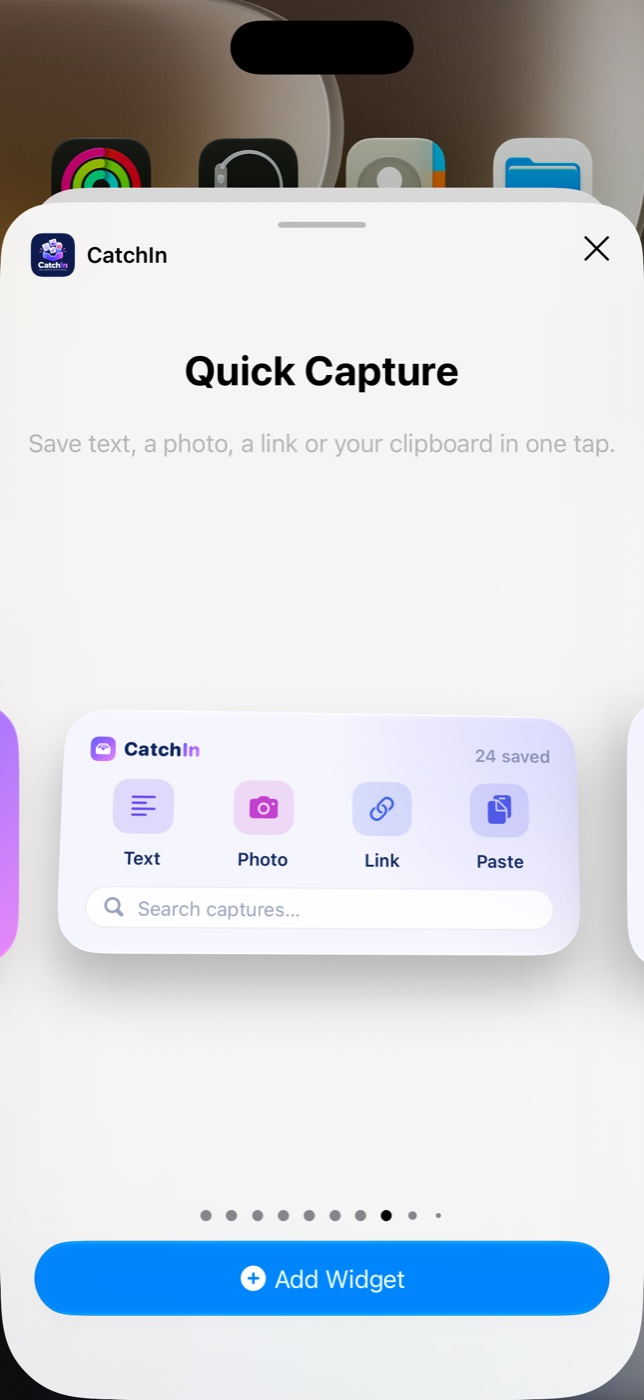
Pinned keeps the Wi-Fi password readable on your Home Screen. Upcoming lists every reminder by day, Reminders counts down live, and Quick Capture saves in one tap — right from the widget.
“Doesn't my iPhone already do this?”
Notes, Photos, Files and Reminders are great at their own job. CatchIn is the one place for the stuff you'll need again — whatever app it came from.
Private by design
No account. No CatchIn server. Text recognition runs on-device, there are no analytics or ad SDKs, and the keyboard works without Full Access.
Vision reads screenshots locally. Images aren't uploaded anywhere.
Lock the whole app behind Face ID — a Pro perk for codes and documents.
A full ABC keyboard plus your captures. iOS blocks it from any network access.
No ads, no analytics SDKs, no data brokers. Your content is never uploaded.
Pricing
The paywall only shows up after you've felt the value — capture, search, reuse.
Everything you need to try the habit.
Free
Unlimited everything, plus a private vault.
Prices appear in your local currency in the app and on the App Store · cancel anytime
Auto-renews until cancelled · Restore purchases in the app · Terms · Privacy
Questions
No. Your captures are stored on your iPhone and text recognition runs on-device with Apple's Vision framework. There's no account and no CatchIn server holding your content. See the Privacy Policy.
In any app tap Share → CatchIn. It saves right there without switching apps. You can also use the Capture button, the Quick Capture widget, Siri or Shortcuts. CatchIn remembers the drawer you used last.
Yes. Save a photo of a card, ID or letter and Quick copy offers the exact number: codes and passwords, PNRs, Aadhaar, PAN, GSTIN, IFSC, UPI IDs, SSN, EIN, IBAN, SWIFT, passport numbers (including the machine-readable zone), card numbers, dates of birth and expiry dates. Numbers with a checksum are validated, card numbers are shown masked, and it all happens on your iPhone.
It runs without Full Access, so iOS blocks it from any network access. It includes a normal ABC keyboard and a panel of your saved captures; CatchIn doesn't store or log what you type.
Free includes 10 captures with search, OCR, drawers, pins, the Share sheet, keyboard and widgets. Pro removes the limits and adds the Face ID lock. Pro is a monthly or yearly subscription; the price is shown in your currency before you buy, and you can cancel anytime in Settings.
Not yet. This version is built for iPhone and keeps everything on the device. Your captures are included in your regular encrypted iPhone backups.
Open the upgrade screen and tap Restore Purchases while signed in with the same Apple Account. Need help? Email avcreationsme@gmail.com.
That's CatchIn. Catch the next thing you'll need — before it gets lost again.
iPhone · iOS 17 or later · No account required